Tutorial contents · Applies to: 0.1.63
Visual guide: the route through this chapter
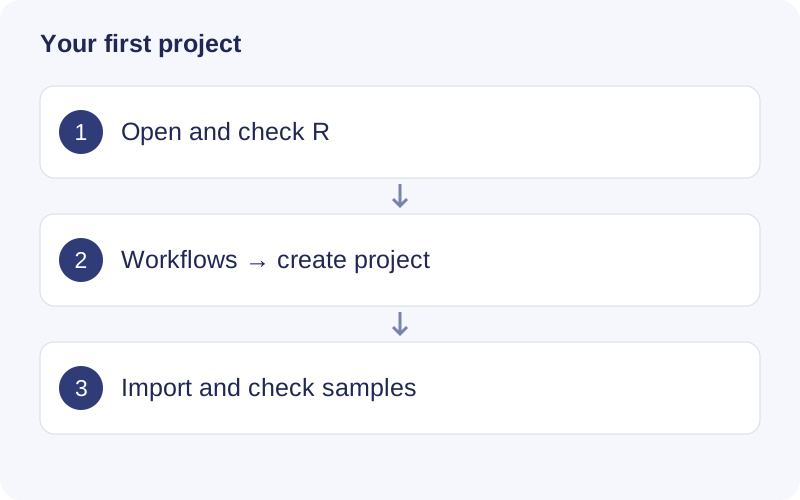
Wait until the R environment is ready. Choose the untargeted workflow, enter a recognizable name, and select a writable parent folder. After importing files, compare the displayed sample count against your sample sheet before advancing to peak detection.
Install on Windows
This guide targets the 0.1.63 Windows x64 preview. Obtain the preview ZIP from the maintainers, extract it fully, and run TidyMass-0.1.63-windows-x64-setup.exe. A public download has not yet been verified; the existing CI artifact requires GitHub repository access. Do not use a macOS DMG or rename an installer to change platforms.
Follow the installer, launch TidyMass and wait for R environment to finish checking the bundled R 4.5.2 and core packages. You do not need a separate system R for the main workflow. Prefer a local writable project folder; keep the raw data available for later peak inspection. If Windows blocks an unknown publisher, verify the supplied installer and its checksum with the maintainers before allowing this app.
Installer and installed-app automated tests were recorded for 0.1.63. They do not establish compatibility with every Windows installation. This guide does not claim Windows ARM support.
Create a project
- Open Workflows and choose the untargeted metabolomics workflow.
- Enter a project name. Click Choose location & create and choose a parent folder.
- In Data import, select mzML/mzXML files and, preferably, sample information.
- Check sample IDs and groups, then import the files.
- Continue to Raw data processing.
Use a new project folder. Reopen an existing project with Projects or Open project, selecting the folder containing project.json.
Find your way around
| Entry | Purpose |
|---|---|
| Workflows | Run a complete analysis in order |
| Analysis tools | Run an individual analysis or preparation tool |
| Shiny tools | Install and open third-party Shiny apps |
| R environment | Inspect R and manage additional packages |
| Code | Read execution code and records |
| Run history | Inspect saved runs and their settings |
| Show settings / Hide settings | Expand or collapse parameters |
A project holds analysis records; a run is one execution; a feature is a detected signal, not automatically an identified compound. Changing parameters affects a new run. Use Settings used for this result to inspect how a saved result was produced.
TidyMass used, Computer used and Computer total report different memory quantities. A high system total is not necessarily caused by this app. After your first run, verify sample counts, missingness, peak shapes and warnings. A completed task confirms execution, not scientific validity.
Walkthrough: Read a saved workflow result
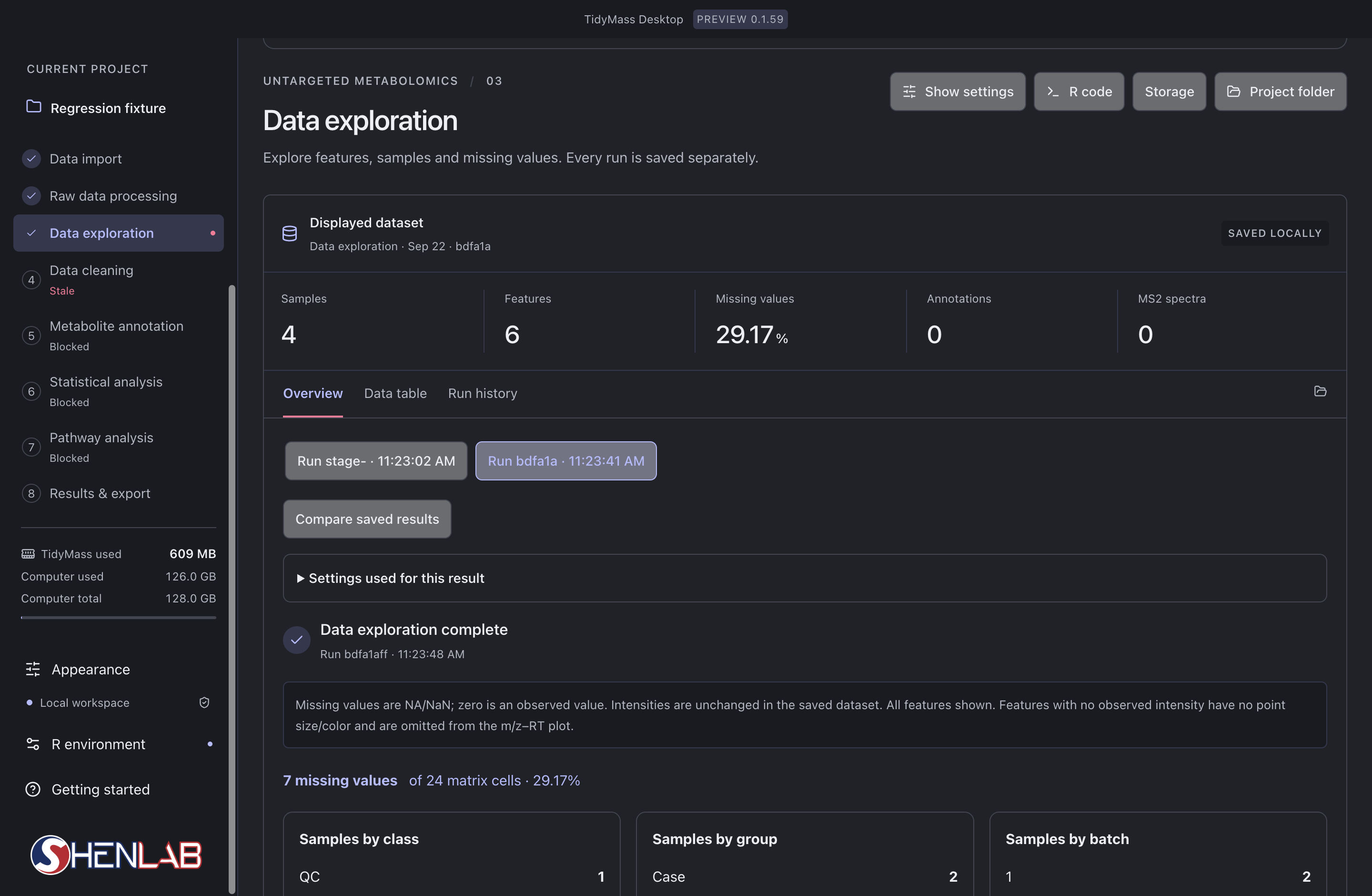
- Read the left-hand stage list first. The selected stage is Data exploration; Data cleaning is marked Stale because its upstream input changed. Blocked stages still lack an eligible input.
- In Displayed dataset, check the run identifier, Samples, Features and Missing values. Here 7 of 24 cells are missing, giving 29.17%; this is a matrix-cell percentage, not the percentage of completely missing samples.
- Select a saved run and expand Settings used for this result. Compare saved results only after checking that their input and parameters answer the same question.
- After checking the result, rerun stale dependent stages in order. If a stage fails, inspect its first error before changing parameters or repeating the task.